
With the Hexoskin mobile app for Android phones, the Hexoskin Recorder pairing steps can now be completed directly in the Hexoskin App. This applies only to the Hexoskin Smart Device (serial number > 42000).
The Hexoskin Classic Device (serial number < 42000) still follows the classic 2-step pairing process. See below for both pairing methods.
Using the app for the first time on a new device
When opening the Hexoskin App for the first time, it is important to "allow" all the necessary permissions for the app to work as intended.
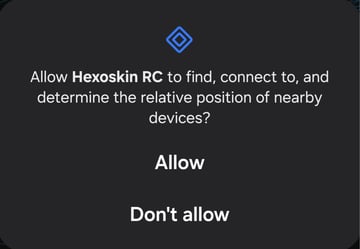
Bluetooth permissions to grant:
Make sure to select "Allow" for both permissions.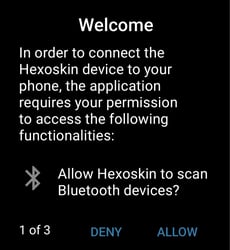
Location permissions to grant:
Make sure to select "Precise" on the 2nd popup.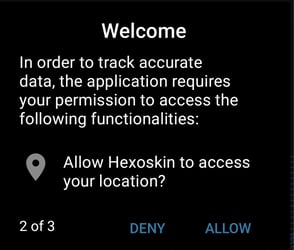
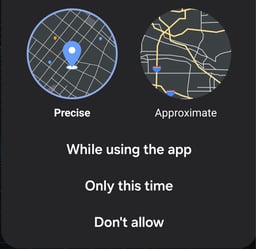
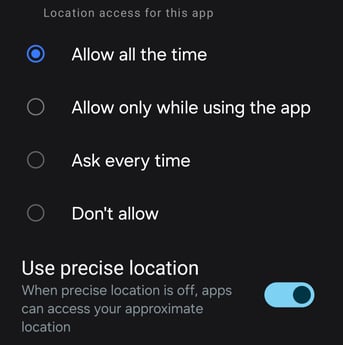
Lastly, make sure to select "Allow" and finally make sure to select "Allow all the time". Once completed, press the back button to head back to the Hexoskin app. 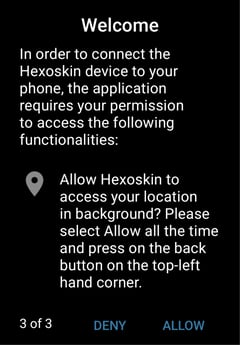 .
. 
Beginning the pairing process for For Hexoskin Smart Devices (Serial > 42000):
After completing the permissions section, you can proceed to log in with your Hexoskin account to initiate the pairing process. If you do not have an account yet, simply click on the "Sign Up" button at the bottom.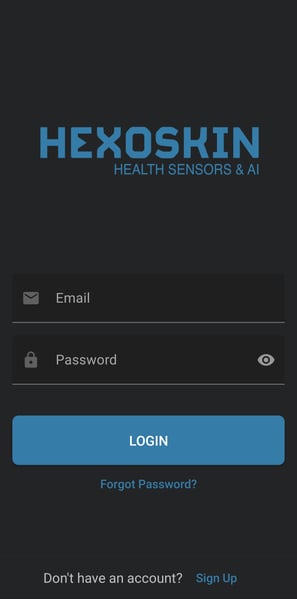
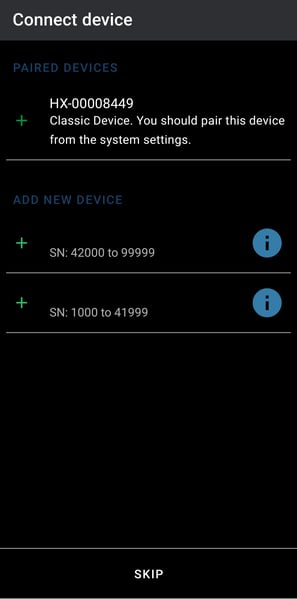
Upon logging in, you'll be presented with the following screen. Make sure to select the right option depending on the serial number of your Recorder.
Note: Do the initial pairing steps while the Recorder is not recording (i.e. not attached to the shirt, 2nd orange LED should be off). The Hexoskin Recorder cannot be placed in pairing mode when a recording is underway.
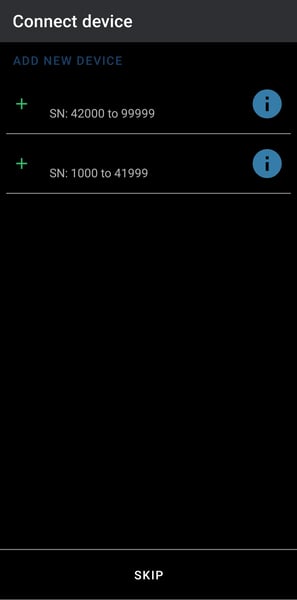
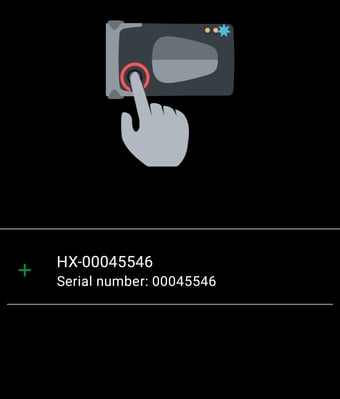
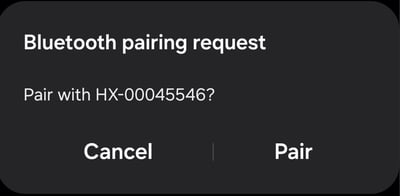
The Hexoskin App will start scanning for nearby Recorders and display the ones available for pairing. If there are multiple devices in proximity during this process, be sure to double-check the serial numbers to choose the right one and then select "Pair" to finalize the connection.
 .
. 
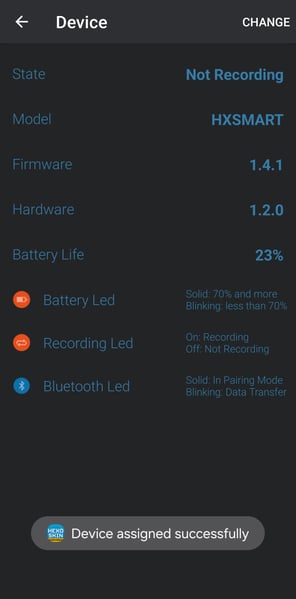
Once your Hexoskin Recorder is paired, you will be directed to the Recorder Details page, where you can check the device's status, model, firmware, and remaining battery.
Now, you can proceed to the Hexoskin App's home screen to begin recording, start activities, and monitor your vitals in real time!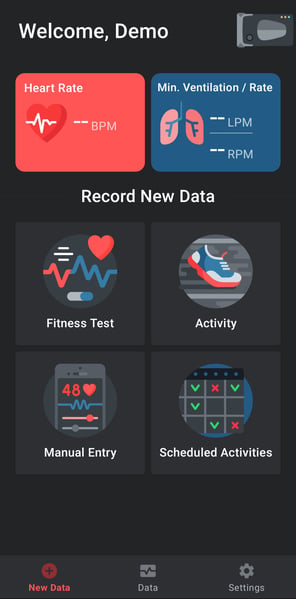
For Hexoskin Classic devices (serial < 42000):
Unlike the Hexoskin Smart Device, the Classic Device needs to be paired with the phone or tablet's Bluetooth menu (outside of the Hexoskin App) and pair it as you would any other Bluetooth device.
To get started, follow these instructions:
1. Turn on Bluetooth on your phone or tablet.
2. Put your Hexoskin Classic Device in pairing mode by holding the button for 5 seconds until the blue light turns on.
3. Look for your Recorder's serial number in the list of available Devices on your phone and select it.
4. Log in to your Hexoskin App with your Hexoskin account.
5. Click on the Devices menu (top right corner) and select Change.
6. Your device should appear in the list of paired devices with the phone (or tablet).
7. Select it to complete the pairing process.
Should you encounter any issues, please don't hesitate to contact our support team.